Computer Vision Applications with YOLO
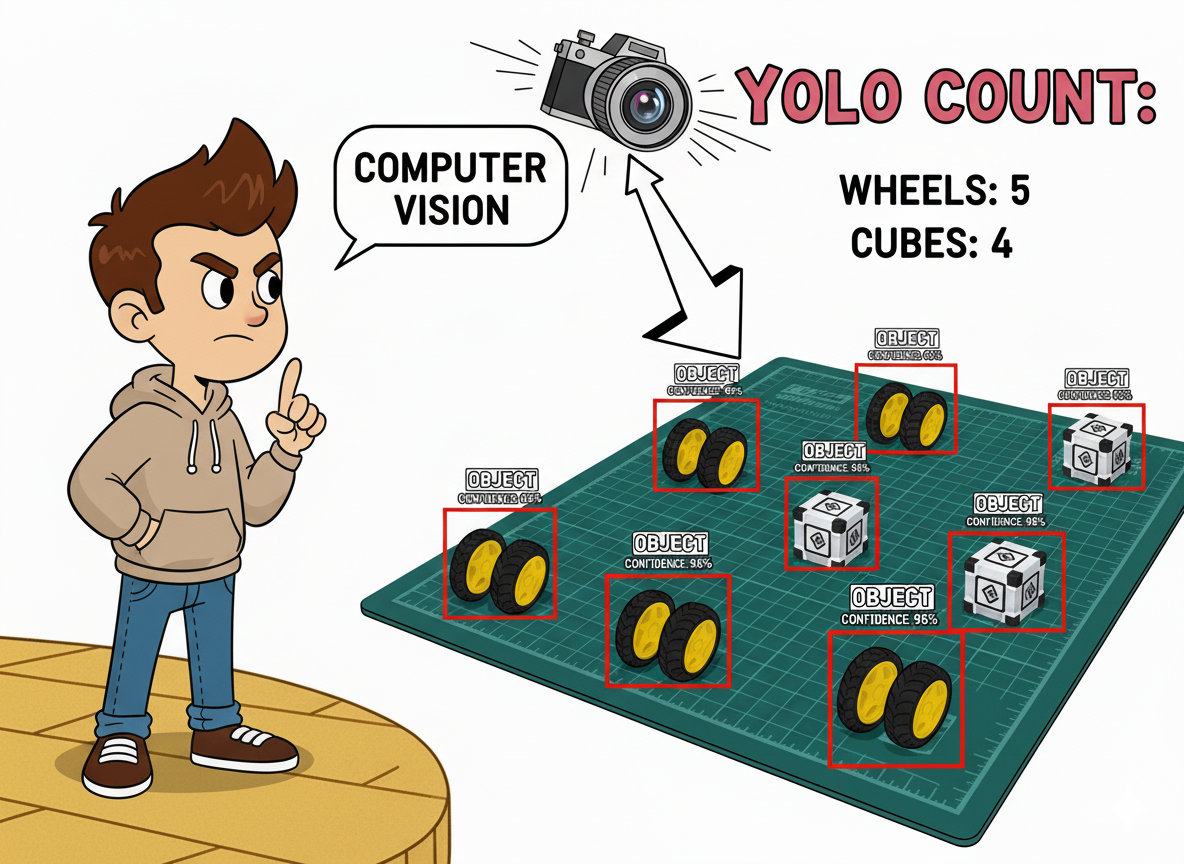
Exploring YOLO Models using Ultralytics
In this chapter, we will explore YOLOv8 and v11. Ultralytics YOLO (v8 and v11) are versions of the acclaimed real-time object detection and image segmentation model, YOLO. YOLOv8 and v11 are built on cutting-edge advances in deep learning and computer vision, offering unparalleled speed and accuracy. Its streamlined design makes it suitable for a wide range of applications and easily adaptable across hardware platforms, from edge devices to cloud APIs.
Talking about the YOLO Model
The YOLO (You Only Look Once) model is a highly efficient, widely used object detection algorithm known for its real-time performance. Unlike traditional object detection systems that repurpose classifiers or localizers for detection, YOLO frames detection as a single regression task. This innovative approach enables YOLO to simultaneously predict multiple bounding boxes and their class probabilities from full images during a single evaluation, significantly boosting its speed.
Key Features
Single Network Architecture:
- YOLO employs a single neural network to process the entire image. This network divides the image into a grid and, for each grid cell, directly predicts bounding boxes and associated class probabilities. This end-to-end training improves speed and simplifies the model architecture.
Real-Time Processing:
- One of YOLO’s standout features is its ability to perform object detection in real-time. Depending on the version and hardware, YOLO can process images at high frames per second (FPS). This makes it ideal for applications requiring quick and accurate object detection, such as video surveillance, autonomous driving, and live sports analysis.
Evolution of Versions:
- Over the years, YOLO has undergone significant improvements, from YOLOv1 to YOLO26, the current generation (2026). Each iteration has introduced enhancements in accuracy, speed, and efficiency. YOLOv8, for instance, incorporates advancements in network architecture, improved training methodologies, and better support for various hardware, ensuring a more robust performance.
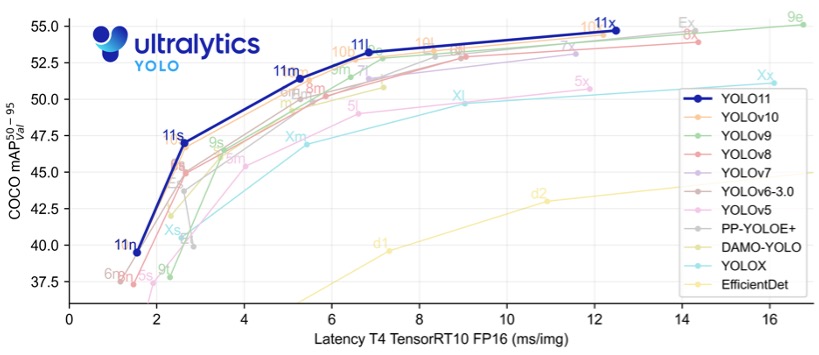
- YOLOv11 offers substantial improvements in accuracy, speed, and parameter efficiency compared to prior versions such as YOLOv8 and YOLOv10, making it one of the most versatile and powerful real-time object detection models available as of 2025.
Accuracy and Efficiency:
- While early versions of YOLO traded off some accuracy for speed, recent versions have made substantial strides in balancing both. The newer models are faster and more accurate, detecting small objects (such as bees) and performing well on complex datasets.
Wide Range of Applications:
- YOLO’s versatility has led to its adoption in numerous fields. It is used in traffic monitoring systems to detect and count vehicles, security applications to identify potential threats and agricultural technology to monitor crops and livestock. Its application extends to any domain requiring efficient and accurate object detection.
Community and Development:
- YOLO continues to evolve and is supported by a strong community of developers and researchers (with YOLOv8 being very strong). Open-source implementations and extensive documentation have made it accessible for customization and integration into various projects. Popular deep learning frameworks like Darknet, TensorFlow, and PyTorch support YOLO, further broadening its applicability.
Model Capabilities
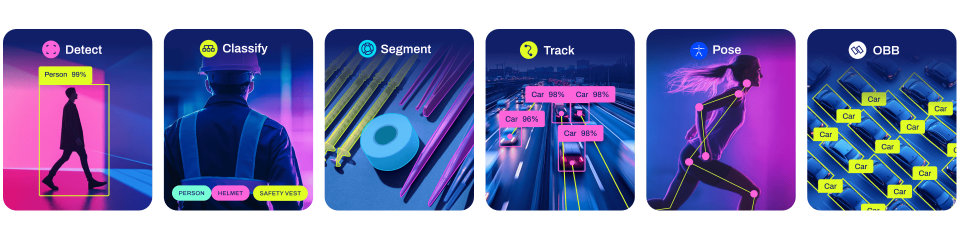
YOLO models support multiple computer vision tasks:
- Object Detection: Identifying and localizing objects with bounding boxes
- Instance Segmentation: Pixel-level object segmentation
- Pose Estimation: Human pose keypoint detection
- Classification: Image classification tasks
Ultralytics YOLO Detect, Segment, and Pose models pre-trained on the COCO dataset, and Classify on the ImageNet dataset.
Track mode is available for all Detect, Segment, and Pose models. The latest versions of YOLO can also perform OBB, which stands for Oriented Bounding Box, a rectangular box in computer vision that can rotate to match the orientation of an object within an image, providing a much tighter and more precise fit than traditional axis-aligned bounding boxes.
Available Model Sizes
YOLO offers several model variants optimized for different use cases, for example, YOLOv8:
- YOLOv8n (Nano): Smallest model, fastest inference, lowest accuracy
- YOLOv8s (Small): Balanced performance for edge devices
- YOLOv8m (Medium): Higher accuracy, moderate computational requirements
- YOLOv8l (Large): High accuracy, requires more computational resources
- YOLOv8x (Extra Large): Highest accuracy, most computationally intensive
For Raspberry Pi applications, the nano variants (YOLOv8n, YOLO11n, or YOLO26n) are the practical choice, due to their optimized size and speed.
A Note on YOLO26
In 2026, Ultralytics released YOLO26, the current generation of the family. The lab below uses YOLOv8 and YOLO11, which remain fully supported and are what most students will already have on their boards, but everything here works with YOLO26 as well — the package, the CLI, and the Python API are the same. To try it, substitute the model name:
yolo predict model='yolo26n' source='https://ultralytics.com/images/bus.jpg'from ultralytics import YOLO
model = YOLO("yolo26n.pt")YOLO26 is worth a look on constrained boards. The nano variant is smaller than YOLO11n (2.4 M parameters and 5.5 GFLOPs, compared to 2.6 M parameters and 6.5 GFLOPs), and Ultralytics reports up to 43% faster CPU ONNX inference for YOLO26n than for YOLO11n on an Intel Xeon. That figure is from a desktop-class CPU, so treat it as a direction rather than a number to expect on a Cortex-A53 — measure on your own board, as we do throughout this lab.
Two differences matter for the code in this chapter:
- YOLO26 is NMS-free by default. Its one-to-one detection head produces predictions directly, without Non-Maximum Suppression. The
iouandagnostic_nmsarguments used later in this lab therefore have no effect on a YOLO26 model unless you request the classic head withend2end=False. Theconfthreshold still behaves as expected. - Export formats. This lab converts models to NCNN for faster inference on the Raspberry Pi. NCNN export works for YOLO26, but it cannot carry the end-to-end head and gives little speedup on this board. For YOLO26, ONNX is the better target — see Exporting YOLO26: ONNX instead of NCNN at the end of the export section.
Installation
First, let’s confirm the System Python version:
python --versionIf we use the latest Raspberry Pi OS (based on Debian Trixie), it should be:
3.13.5
Earlier versions of this lab installed Python 3.11 through Pyenv, because Ultralytics did not yet support Python 3.13. That is no longer necessary — recent Ultralytics releases publish cp313 wheels, so we can use the system Python that ships with Trixie and skip the Pyenv step entirely.
If the Raspberry Pi OS is the legacy (Bookworm), the Python version will be 3.11, and everything below still applies.
Create YOLO Workspace
cd Documents
mkdir YOLO
cd YOLO
mkdir models
mkdir images
Create Virtual Environment
We create the environment with access to the system packages, so that Debian’s own builds of NumPy, Pillow, and picamera2 are reused instead of being recompiled inside the venv:
python3 -m venv ~/yolo --system-site-packages
source ~/yolo/bin/activate

# Verify we are using the correct Python
which python
python --version
To exit the virtual environment later:
deactivateRedirect pip’s Temporary Directory
Debian Trixie mounts /tmp as a tmpfs, which lives in RAM. On a Raspberry Pi Zero 2 W, that gives us only about 208 MB:
findmnt /tmp
df -h /tmp
pip streams each wheel into a temporary file before installing it, and the PyTorch wheel alone is well over 400 MB. Without a change, the installation fails partway through with a misleading error:
OSError: [Errno 28] No space left on deviceThe disk is not full — /tmp is. We point pip at a temporary directory on the SD card instead:
mkdir -p ~/tmp
export TMPDIR=$HOME/tmp
This lasts for the current shell session. To make it permanent, append
export TMPDIR=$HOME/tmpto the end of~/yolo/bin/activate, so it is applied whenever the environment is active.
Installing Ultralytics/YOLO
Inside the activated environment:
- Update the packages list and upgrade pip:
sudo apt update
pip install -U pip- Install the CPU build of PyTorch first:
pip install torch torchvision --index-url https://download.pytorch.org/whl/cpuThis step matters. The default PyTorch wheels for aarch64 now declare CUDA dependencies (cuBLAS, cuDNN, NCCL, Triton) for ARM datacenter parts. pip has no way to know that our Cortex-A53 will never use them, so it will happily download several gigabytes of libraries that cannot run on this board. Installing the CPU build first satisfies the requirement, and the CUDA chain is skipped. Confirm the wheel name carries a +cpu suffix before continuing.
- Install the
ultralyticspackage:
pip install ultralyticsThe
ultralytics[export]variant also pulls in TensorFlow, OpenVINO, and CoreMLTools. None of them are used in this lab, and they take a long time to install on a Zero 2 W. The NCNN export we use later downloads its ownpnnxtool on demand, so the plain package is enough.
- Reboot the device:
sudo rebootTesting the YOLO
After the Raspi booting, let’s activate the yolo env, go to the working directory,
cd ~/Documents/YOLO
source ~/yolo/bin/activate
And run inference on an image that will be downloaded from the Ultralytics website, using, for example, the YOLOv8n model (the smallest in the family) at the Terminal (CLI):
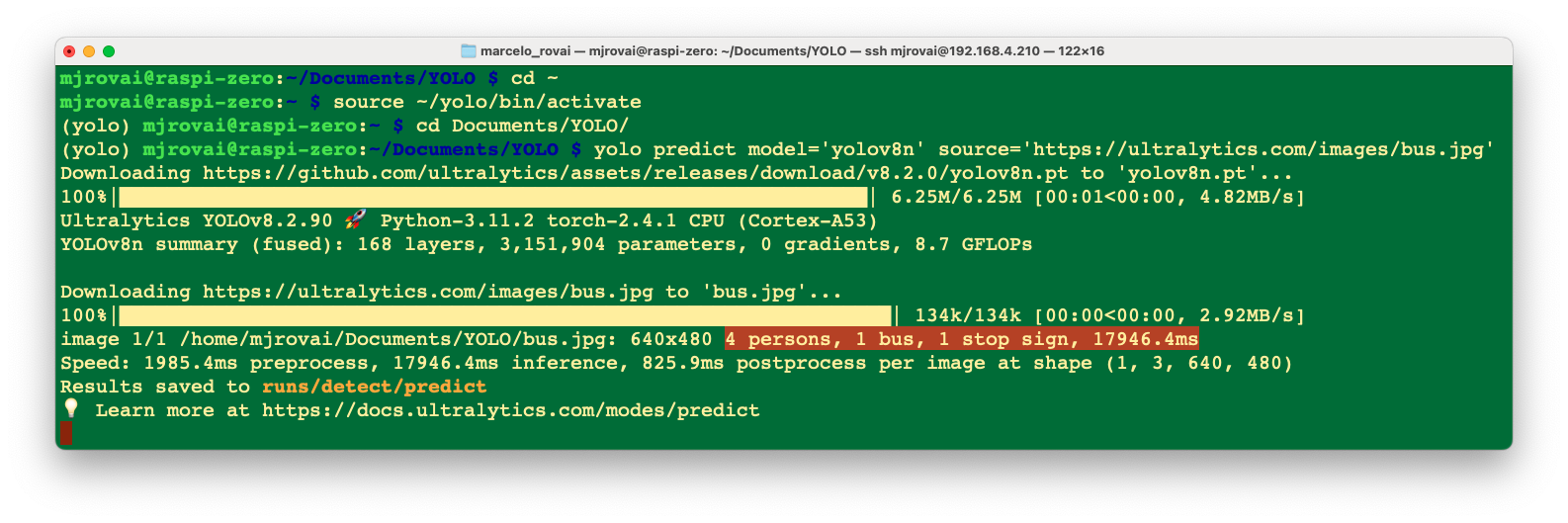
yolo predict model='yolov8n' source='https://ultralytics.com/images/bus.jpg'Note that the first time we invoke a model, it will automatically be downloaded to the current directory.
The inference result will appear in the terminal. In the image (bus.jpg), 4 persons, 1 bus, and 1 stop sign were detected:
Also, we got a message that Results saved to runs/detect/predict. Inspecting that directory, we can see a new image saved (bus.jpg). Let’s download it from the Raspi to our desktop for inspection:
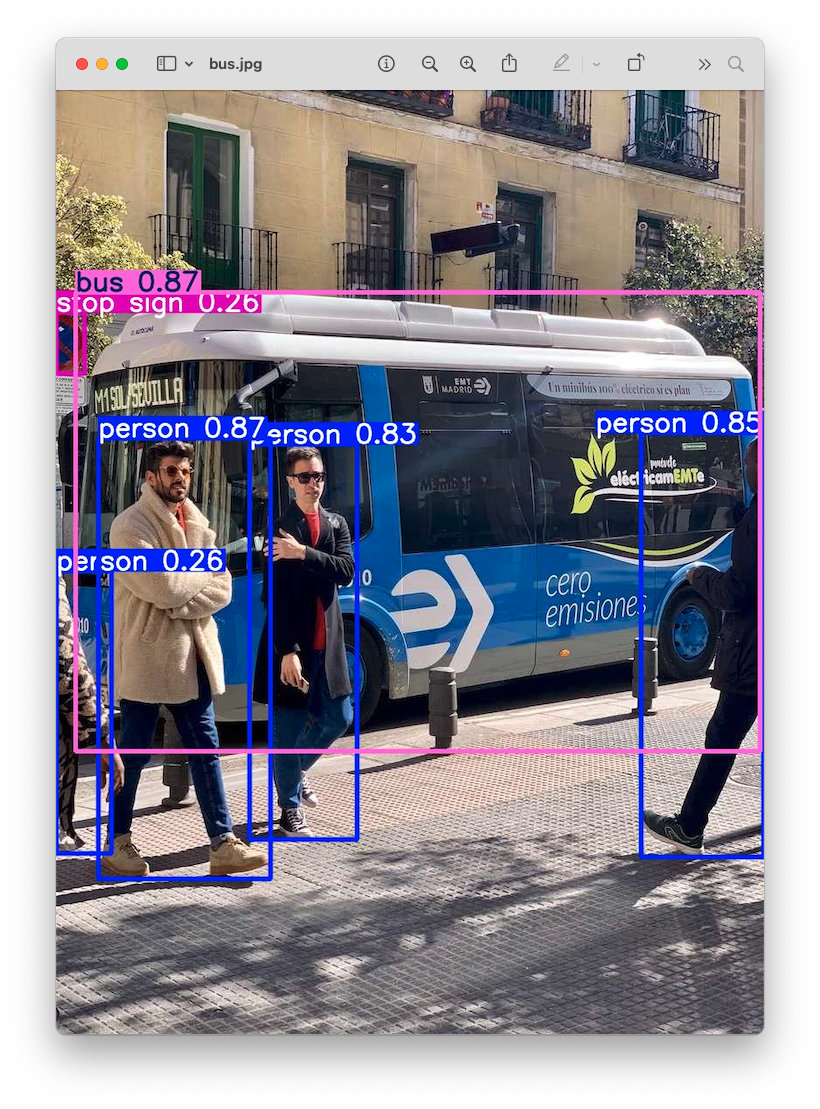
So, the Ultralytics YOLO is correctly installed on our Raspberry Pi. Note that on the Raspberry Pi Zero, an issue is the high latency for this inference, which takes several seconds, even with the most compact model in the family (YOLOv8n).
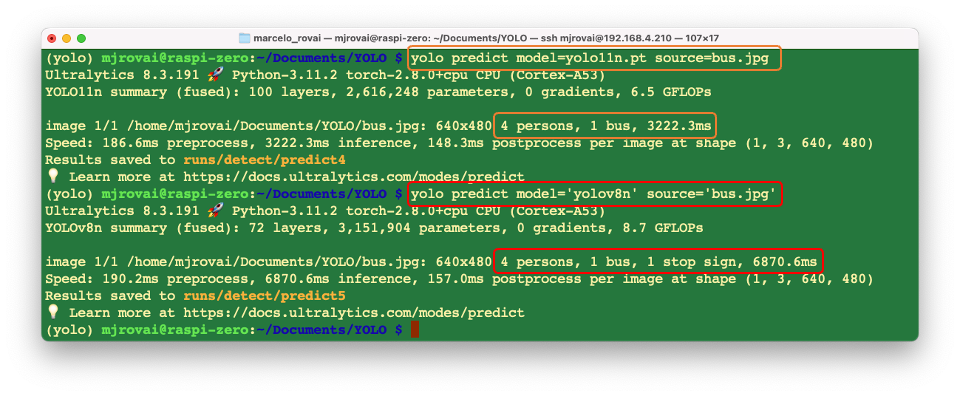
Testing with the YOLO11n
The procedure is the same as it was in version v8. For comparison, we can see that YOLO11 is faster than v8 but appears slightly less precise, as it does not detect the “stop sign” as v8 does.
Testing with the YOLO26n
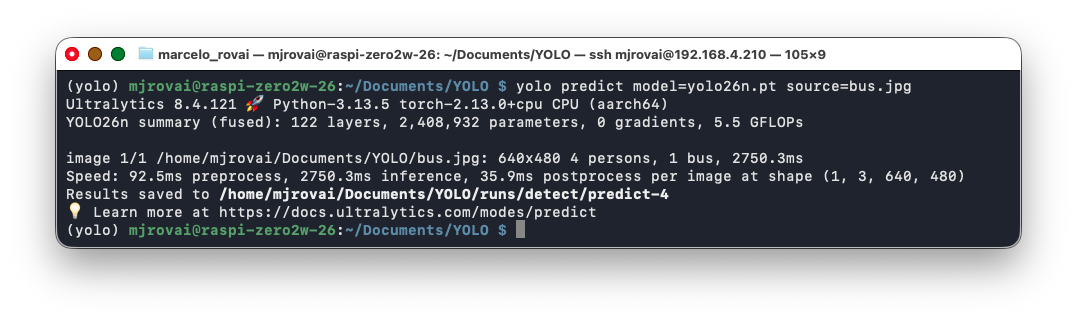
The procedure is the same as we used with versions v8 and v11. For comparison, we can see that YOLO26n is faster than v8 and v11 and seems to have the same precision as v11.
Export Models to NCNN format
Deploying computer vision models on edge devices with limited computational power, such as the Raspberry Pi Zero, can cause latency issues. One alternative is to use a format optimized for optimal performance. This ensures that even devices with limited processing power can handle advanced computer vision tasks well.
Of all the model export formats supported by Ultralytics, the NCNN is a high-performance neural network inference computing framework optimized for mobile platforms. NCNN was designed from the start for deployment on mobile phones and has no third-party dependencies. It is cross-platform, and its authors report it running faster than other open-source frameworks (such as TFLite) on mobile CPUs.
NCNN delivers the best inference performance when working with Raspberry Pi devices. NCNN is highly optimized for mobile embedded platforms (such as ARM architecture).
Let’s move the downloaded YOLO models to the ./models folder and the bus.jpg to ./images.
And convert our models and rerun the inferences:
- Export the YOLO PyTorch models to NCNN format, creating:
yolov8n_ncnn_modelandyolo11n_ncnn_model
yolo export model=./models/yolov8n.pt format=ncnn
yolo export model=./models/yolo11n.pt format=ncnn
yolo export model=./models/yolo26n.pt format=ncnn- Run inference with the exported models:
yolo predict task=detect model='./models/yolov8n_ncnn_model' source='./images/bus.jpg'
yolo predict task=detect model='./models/yolo11n_ncnn_model' source='./images/bus.jpg'
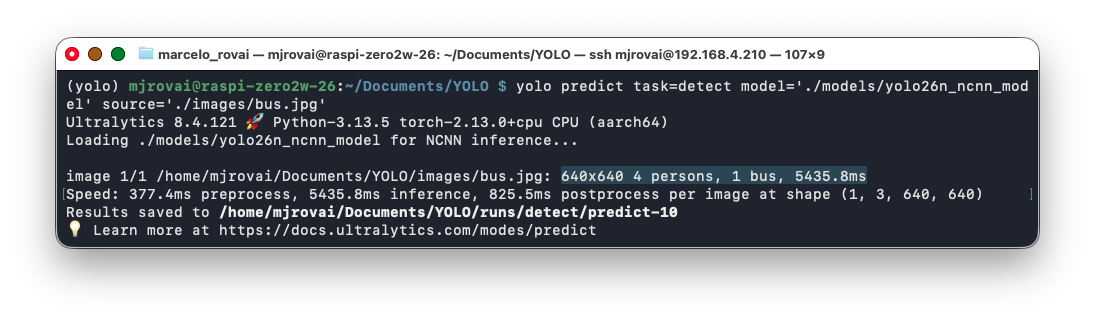
yolo predict task=detect model='./models/yolo26n_ncnn_model' source='./images/bus.jpg'
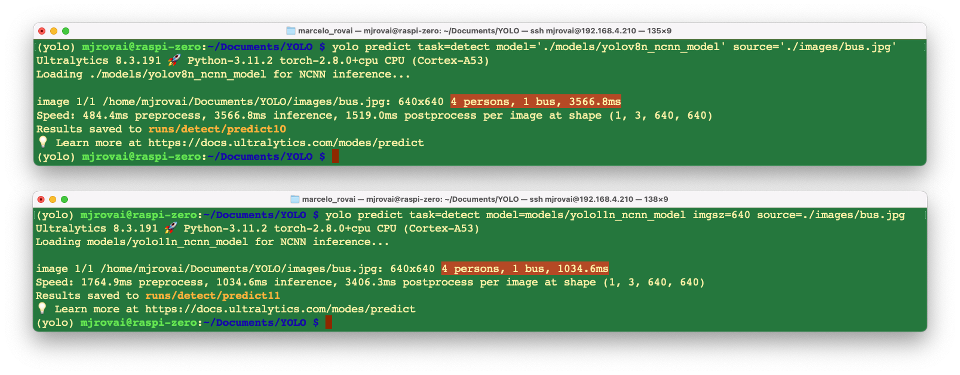
The first inference, when the model is loaded, typically has high latency; however, from the second inference onward, the inference time decreases.
We can now see that neither model detects the “stop sign”, with YOLO11n being the fastest. The optimized models are more rapid but also less accurate.
Note the warning printed during every YOLO26 export:
WARNING ⚠️ NCNN export does not support end2end models, disabling end2end branch.The converted YOLO26 model is therefore the classic one-to-many-head model, which requires NMS — not the end-to-end head we used in the PyTorch test above. This costs YOLO26 twice: the heavier head, and a conversion that barely helps. The next section measures it.
Exporting YOLO26: ONNX instead of NCNN
NCNN is the right target for YOLOv8 and YOLO11, but not for YOLO26. ONNX Runtime keeps the end-to-end head and is considerably faster on this board:
yolo export model=./models/yolo26n.pt format=onnx
yolo predict task=detect model=./models/yolo26n.onnx source=./images/bus.jpg imgsz=640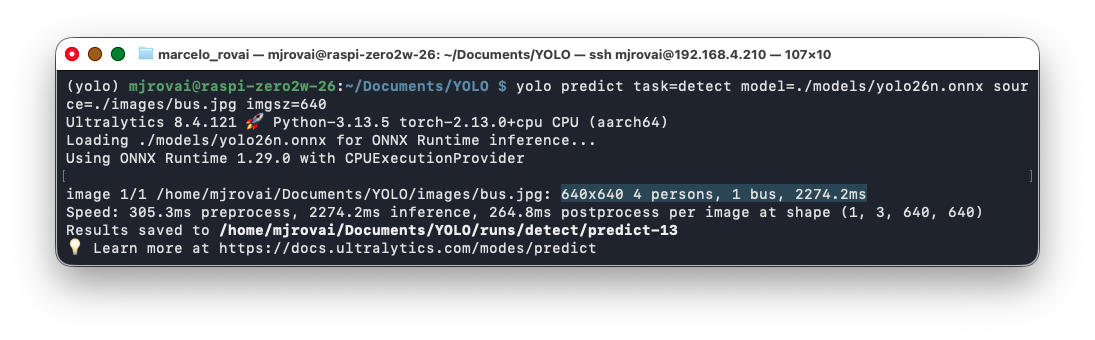
Steady-state results measured on a Raspberry Pi Zero 2 W (second run of each, bus.jpg):
| Model | Format | Head | Inference (ms) | Postprocess (ms) |
|---|---|---|---|---|
| YOLO11n | PyTorch | one-to-many | 4672 | 276 |
| YOLO11n | NCNN | one-to-many | 2748 | 533 |
| YOLO26n | PyTorch | end-to-end | 2750 | 36 |
| YOLO26n | PyTorch (end2end=False) |
one-to-many | 4515 | 192 |
| YOLO26n | NCNN | one-to-many | 5436 | 826 |
| YOLO26n | ONNX | end-to-end | 2274 | 265 |
The PyTorch rows run at 640×480 and the exported rows at 640×640. Ultralytics LetterBoxer boxes to a rectangle for PyTorch inference but exports at a fixed square, so the exported models process about 33% more pixels. Multiply the PyTorch numbers by 1.33 before comparing them directly with the exported ones —
imgsz=640does not change this.
Two lessons come out of this table:
- The end-to-end head is what makes YOLO26 fast. Switching it off with
end2end=Falsecosts 1.6× on the same runtime and the same image (2750 → 4515 ms), and the postprocess column shows why: 36 ms without NMS against 192 ms with it. - A conversion that helps one model can fail to help another. Comparing like with like (one-to-many head, 640×640), NCNN cuts YOLO11n’s latency by more than half, but improves YOLO26n by roughly 10%. Since NCNN also forces the slower head, converting YOLO26 to NCNN leaves it worse off than the plain PyTorch model.
This is worth pausing on. The vendor benchmark says YOLO26n is faster than YOLO11n, and on this board it is — in PyTorch and in ONNX. Follow the NCNN recipe that works well for v8 and v11, though, and YOLO26 comes out the slowest of the three. The lesson is not that one model or one format is best, but that the model and the export path have to be chosen together, and measured on the target hardware.
Exploring YOLO with Python
To start, let’s call the Python Interpreter so we can explore how the YOLO model works, line by line:
pythonNow, we should call the YOLO library from Ultralytics and load the model:
from ultralytics import YOLO
model = YOLO('./models/yolov8n_ncnn_model')
Run inference over an image (let’s use again bus.jpg):
img = './images/bus.jpg'
result = model.predict(img, save=True, imgsz=640, conf=0.5, iou=0.3)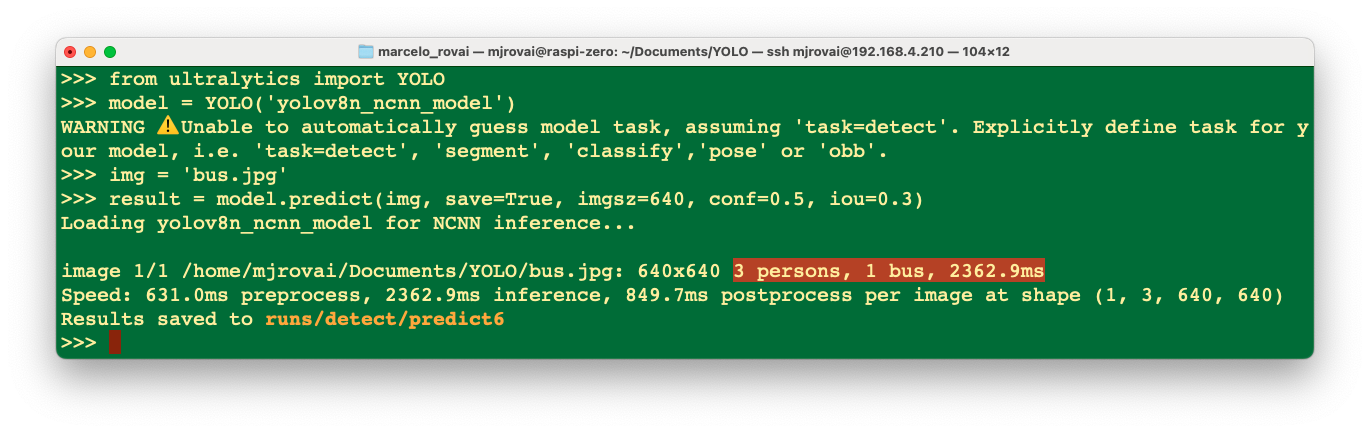
We can verify that the result is almost identical to the one when running inference at the terminal level (CLI), except that the stop sign was not detected with the reduced NCNN model. Note that the latency was reduced.
Let’s analyze the “result” content.
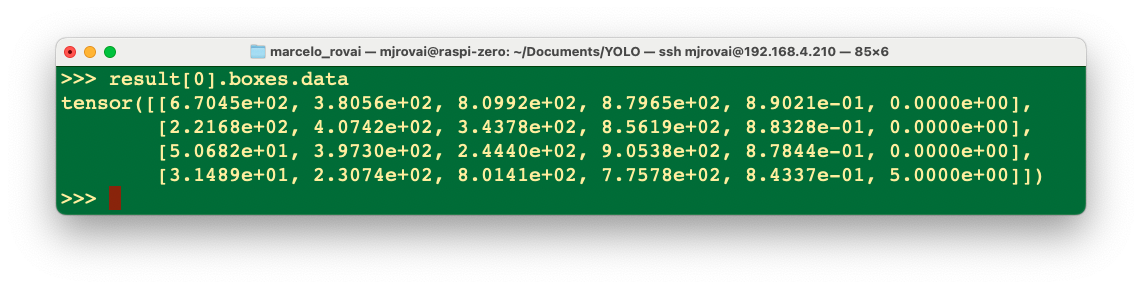
For example, we can see result[0].boxes.data, showing us the main inference result, which is a tensor with a shape of (4, 6). Each line is one of the objects detected, being the first four columns, the bounding boxes coordinates, the 5th, the confidence, and the 6th, the class (in this case, 0: person and 5: bus):
We can access several inference results separately, such as the inference time, and have it printed in a better format:
inference_time = int(result[0].speed['inference'])
print(f"Inference Time: {inference_time} ms")
Or we can have the total number of objects detected:
print(f'Number of objects: {len (result[0].boxes.cls)}')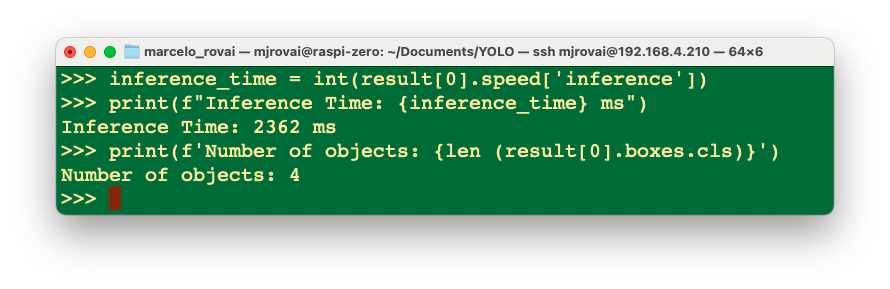
With Python, we can create a detailed output that meets our needs (See Model Prediction with Ultralytics YOLO for more details). Let’s run a Python script instead of manually entering it line by line in the interpreter, as shown below. Let’s use nano as our text editor. First, we should create an empty Python script named, for example, yolov8_tests.py:
nano yolov8_tests.pyEnter the code lines:
from ultralytics import YOLO

# Load the YOLOv8 model
model = YOLO('./models/yolov8n_ncnn_model')

# Run inference
img = './images/bus.jpg'
result = model.predict(img, save=False, imgsz=640, conf=0.5, iou=0.3)

# print the results
inference_time = int(result[0].speed['inference'])
print(f"Inference Time: {inference_time} ms")
print(f'Number of objects: {len (result[0].boxes.cls)}')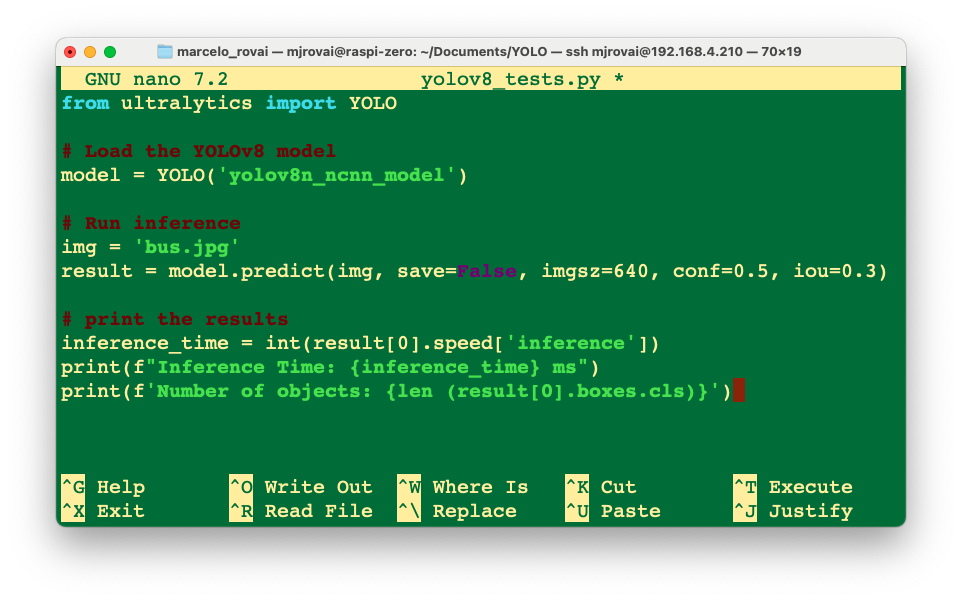
Then press [CTRL+O] + [ENTER] + [CTRL+X] to save the Python script.
Run the script:
python yolov8_tests.pyThe result is the same as running the inference at the terminal level (CLI) and with the built-in Python interpreter.
Calling the YOLO library and loading the model for inference for the first time takes a long time, but the inferences after that will be much faster. For example, the first single inference can take several seconds, but after that, the inference time should be reduced to less than 1 second.
Inference Arguments
model.predict() accepts multiple arguments that can be passed at inference time to override defaults:
Inference arguments:
| Argument | Type | Default | Description |
|---|---|---|---|
source |
str |
'ultralytics/assets' |
Specifies the data source for inference. Can be an image path, video file, directory, URL, or device ID for live feeds. Supports a wide range of formats and sources, enabling flexible application across different types of input. |
conf |
float |
0.25 |
Sets the minimum confidence threshold for detections. Objects detected with confidence below this threshold will be disregarded. Adjusting this value can help reduce false positives. |
iou |
float |
0.7 |
Intersection Over Union (IoU) threshold for Non-Maximum Suppression (NMS). Lower values result in fewer detections by eliminating overlapping boxes, useful for reducing duplicates. |
imgsz |
int or tuple |
640 |
Defines the image size for inference. Can be a single integer 640 for square resizing or a (height, width) tuple. Proper sizing can improve detection accuracy and processing speed. |
rect |
bool |
True |
If enabled, minimally pads the shorter side of the image until it’s divisible by stride to improve inference speed. If disabled, pads the image to a square during inference. |
half |
bool |
False |
Enables half-precision (FP16) inference, which can speed up model inference on supported GPUs with minimal impact on accuracy. |
device |
str |
None |
Specifies the device for inference (e.g., cpu, cuda:0 or 0). Allows users to select between CPU, a specific GPU, or other compute devices for model execution. |
batch |
int |
1 |
Specifies the batch size for inference (only works when the source is a directory, video file or .txt file). A larger batch size can provide higher throughput, shortening the total amount of time required for inference. |
max_det |
int |
300 |
Maximum number of detections allowed per image. Limits the total number of objects the model can detect in a single inference, preventing excessive outputs in dense scenes. |
vid_stride |
int |
1 |
Frame stride for video inputs. Allows skipping frames in videos to speed up processing at the cost of temporal resolution. A value of 1 processes every frame, higher values skip frames. |
stream_buffer |
bool |
False |
Determines whether to queue incoming frames for video streams. If False, old frames get dropped to accommodate new frames (optimized for real-time applications). If True, queues new frames in a buffer, ensuring no frames get skipped, but will cause latency if inference FPS is lower than stream FPS. |
visualize |
bool |
False |
Activates visualization of model features during inference, providing insights into what the model is “seeing”. Useful for debugging and model interpretation. |
augment |
bool |
False |
Enables test-time augmentation (TTA) for predictions, potentially improving detection robustness at the cost of inference speed. |
agnostic_nms |
bool |
False |
Enables class-agnostic Non-Maximum Suppression (NMS), which merges overlapping boxes of different classes. Useful in multi-class detection scenarios where class overlap is common. |
classes |
list[int] |
None |
Filters predictions to a set of class IDs. Only detections belonging to the specified classes will be returned. Useful for focusing on relevant objects in multi-class detection tasks. |
retina_masks |
bool |
False |
Returns high-resolution segmentation masks. The returned masks (masks.data) will match the original image size if enabled. If disabled, they have the image size used during inference. |
embed |
list[int] |
None |
Specifies the layers from which to extract feature vectors or embeddings. Useful for downstream tasks like clustering or similarity search. |
project |
str |
None |
Name of the project directory where prediction outputs are saved if save is enabled. |
name |
str |
None |
Name of the prediction run. Used for creating a subdirectory within the project folder, where prediction outputs are stored if save is enabled. |
stream |
bool |
False |
Enables memory-efficient processing for long videos or numerous images by returning a generator of Results objects instead of loading all frames into memory at once. |
verbose |
bool |
True |
Controls whether to display detailed inference logs in the terminal, providing real-time feedback on the prediction process. |
Visualization arguments:
| Argument | Type | Default | Description |
|---|---|---|---|
show |
bool |
False |
If True, displays the annotated images or videos in a window. Useful for immediate visual feedback during development or testing. |
save |
bool |
False or True |
Enables saving of the annotated images or videos to file. Useful for documentation, further analysis, or sharing results. Defaults to True when using CLI & False when used in Python. |
save_frames |
bool |
False |
When processing videos, saves individual frames as images. Useful for extracting specific frames or for detailed frame-by-frame analysis. |
save_txt |
bool |
False |
Saves detection results in a text file, following the format [class] [x_center] [y_center] [width] [height] [confidence]. Useful for integration with other analysis tools. |
save_conf |
bool |
False |
Includes confidence scores in the saved text files. Enhances the detail available for post-processing and analysis. |
save_crop |
bool |
False |
Saves cropped images of detections. Useful for dataset augmentation, analysis, or creating focused datasets for specific objects. |
show_labels |
bool |
True |
Displays labels for each detection in the visual output. Provides immediate understanding of detected objects. |
show_conf |
bool |
True |
Displays the confidence score for each detection alongside the label. Gives insight into the model’s certainty for each detection. |
show_boxes |
bool |
True |
Draws bounding boxes around detected objects. Essential for visual identification and location of objects in images or video frames. |
line_width |
None or int |
None |
Specifies the line width of bounding boxes. If None, the line width is automatically adjusted based on the image size. Provides visual customization for clarity. |
Exploring other Computer Vision Applications
A note on memory: disable zram on the Raspberry Pi Zero 2 W.
Raspberry Pi OS (Trixie) enables zram by default: a compressed swap device that lives inside RAM. On boards with memory to spare this is a good trade. On the Zero 2 W it is not. A full 415 MB zram device holds its compressed pages in physical memory, consuming roughly a third of the board’s ~415 MB before any of it is available to your program. Running this notebook with zram active, the kernel was repeatedly terminated by the Linux OOM killer, and when it survived it ran about three times slower than the same work from the CLI.
Replacing zram with a swap file on the SD card fixes both problems. Disk swap can actually evict cold pages from RAM — the idle Jupyter server, for instance — which zram can never do:
# Create a 1 GB swap file on the SD card
sudo fallocate -l 1G /swapfile
sudo chmod 600 /swapfile
sudo mkswap /swapfile
sudo swapon /swapfile
echo '/swapfile none swap sw,pri=-2 0 0' | sudo tee -a /etc/fstab

# Disable zram permanently
sudo systemctl mask systemd-zram-setup@zram0.service
sudo reboot

# Confirm: /swapfile should be the only entry
swapon --show
free -h
Measured effect on this notebook (Raspberry Pi Zero 2 W, inference in ms):
Test zram SD swap only YOLO11n, 320 7562 1946 YOLO11n, 640 13541 5426 Segmentation, beatles.jpg36552 8409 Pose, beatles.jpg20088 5986 Custom model, 320 14260 2531 With this change the notebook runs at roughly the same speed as the CLI. This is a general edge-AI lesson worth keeping: a memory optimization that helps a laptop can be actively harmful on a board where RAM is the scarce resource. Always measure on the target.
Notebooks are for exploring; scripts are for deploying. This section uses a Jupyter Notebook because it is a good way to inspect the API and see results inline. A deployed edge device does not work this way: it runs a Python script started by
systemd,cron, or a service manager, with no interactive session and no browser attached. Every code block below runs unchanged when saved to a.pyfile and executed withpython my_script.py.One consequence is worth knowing. The notebook uses Matplotlib to display images, which is convenient but expensive: it holds the full-resolution array, renders it onto a separate canvas, and encodes a PNG for the browser — three copies of the image in flight, plus 40–60 MB of RSS just for the import. On the Zero 2 W this is often the slowest part of a cell, far slower than the inference itself. In a headless script, drop Matplotlib entirely and let Ultralytics write the annotated image directly:
result.save(filename="out.jpg")Inside a notebook,
IPython.displayachieves the same with none of the rendering overhead:from IPython.display import Image as IPImage, display result.save(filename="out.jpg") display(IPImage("out.jpg"))
Let’s set up Jupyter Notebook optimized for headless Raspberry Pi camera work and development:
pip install jupyter jupyterlab notebook
jupyter notebook --generate-config
To run Jupyter Notebook, run the command (change the IP address for yours):
jupyter notebook --ip=192.168.4.210 --no-browserOn the terminal, you can see the local URL address and its Token to open the notebook. Copy and paste it into the Browser.
Environment Setup and Dependencies
import time
import numpy as np
from PIL import Image
from ultralytics import YOLO
import matplotlib.pyplot as plt
Here we have all the necessary libraries, which we installed automatically when we installed Ultralytics.
- Time: Performance measurement and benchmarking
- NumPy: Numerical computations and array operations
- PIL (Python Imaging Library): Image loading and manipulation
- Ultralytics YOLO: Core YOLO functionality
- Matplotlib: Visualization and plotting results
Model Configuration and Loading
model_path= "./models/yolo11n.pt"
task = "detect"
verbose = False

model = YOLO(model_path, task, verbose)- Model Selection: YOLOv11n (nano) is chosen for its balance of speed and accuracy
- Task Specification: We will select
detect, which in fact is the default for the model. But remember that YOLO supports multiple computer vision tasks, which will be explored later. - Verbose Control: output model information during model initialization
Performance Characteristics
Let’s open the previous bus image using PIL
source = Image.open("./images/bus.jpg")And run an inference in the source:
results = model.predict(source, save=False, imgsz=640, conf=0.5, iou=0.3)From the inference results info, we can see that the first time an inference is run, the latency is greater.
# First inference
0: 640x480 4 persons, 1 bus, 7528.3ms

# Second inference
0: 640x480 4 persons, 1 bus, 2822.1ms
The dramatic difference between the first inference (7.5s) and subsequent inferences (2.8s) illustrates:
- Model Loading Overhead: Initial inference includes model loading time
- Optimization Effects: Subsequent inferences benefit from cached optimizations
Results Object Structure
Let’s explore the YOLO’s output structure:
result = results[0]
# - boxes, keypoints, masks, names
# - orig_img, orig_shape, path
# - speed metrics
Bounding Box Analysis
result.boxes.cls  # Class IDs: tensor([5., 0., 0., 0., 0.])
result.boxes.conf # Confidence scores
result.boxes.xyxy # Bounding box coordinates- Coordinate Systems: On
Result.boxes, we can get different bounding box formats (xyxy, xywh, normalized):- xywh: Tensor with bounding box coordinates in center_x, center_y, width, height format, in pixels.
- xywhn: Normalized center_x, center_y, width, height, scaled to the image dimensions, values in [0, 1].
- xyxy: Tensor of boxes as x1, y1, x2, y2 in pixels, representing the top-left and bottom-right corners.
- xyxyn: Normalized x1, y1, x2, y2, scaled by image width and height, values in [0, 1].
Visualization and Customization
The Ultralytics plot() can be customized to show as the detection result, for example, only the bounding boxes:
im_bgr = result.plot(boxes=True, labels=False, conf=False)img = Image.fromarray(im_bgr[..., ::-1])
plt.figure(figsize=(6, 6))
plt.imshow(img)
#plt.axis('off') # This turns off the axis numbers
plt.title("YOLO Result")
plt.show()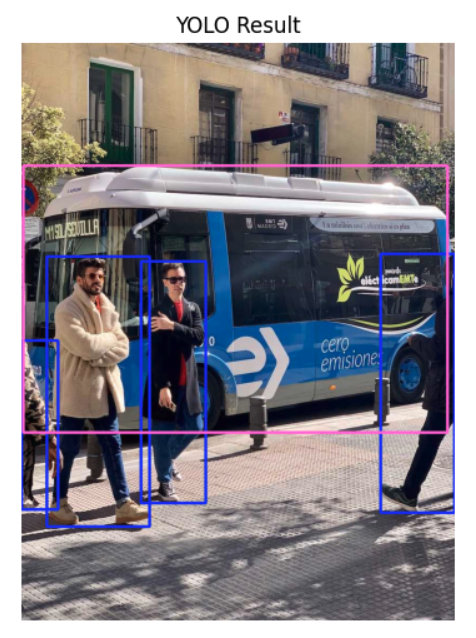
Customization Options:
The plot() method in Ultralytics YOLO Results object accepts several arguments to control what is visualized on the image, including boxes, masks, keypoints, confidences, labels, and more. Common arguments for plot():
- boxes (bool): Show/hide bounding boxes. Default is True.
- conf (bool): Show/hide confidence scores. Default is True.
- labels (bool): Show/hide class labels. Default is True.
- masks (bool): Show/hide segmentation masks (when available, e.g. in segment tasks).
- kpt_line (bool): Draw lines connecting pose keypoints (skeleton diagram). Default is True in pose tasks.
- line_width (int): Set annotation line thickness.
- font_size (int): Set font size for text annotations.
- show (bool): If True, immediately display the image (interactive environments).
Exploring Other Computer Vision Tasks
Image Classification
As explored in previous chapters, the output of an image classifier is a single class label and a confidence score. Image classification is useful when we need to know only what class an image belongs to and don’t need to know where objects of that class are located or what their exact shape is.
model_path= "./models/yolo11n-cls.pt"
task = "clasification"

model = YOLO(model_path, task, verbose)
Note that a specific variation of the model, for image classification, will be downloaded. Now, let’s do an inference, using the same bus image:
results = model.predict(source, save=False)
result = results[0]
The model inference will return:
0: 224x224 minibus 0.57, police_van 0.34, trolleybus 0.04, recreational_vehicle 0.01, streetcar 0.01, 3355.1ms

Speed: 5233.9ms preprocess, 3355.1ms inference, 28.2ms postprocess per image at shape (1, 3, 224, 224)
We can check the top5 inference results using Python:
classes = result.probs.top5
classes
And we will get:
[654, 734, 874, 757, 829]Which correspond to:
for id in classes:
    print(result.names[id])
minibus
police_van
trolleybus
recreational_vehicle
streetcarAnd the top 5 probabilities:
probs = result.probs.top5conf.tolist()
probs
[0.5710113048553467,
0.33745330572128296,
0.04209813103079796,
0.014150412753224373,
0.005880324635654688]The Top 1 result can be extracted directly from the result:
print(result.names[result.probs.top1],
      round(result.probs.top1conf.tolist(), 2))
minibus 0.57Instance Segmentation
model_path= "./models/yolo11n-seg.pt"
task = "segment"

model = YOLO(model_path, task, verbose)
Note that a specific variation of the model, for instance segmentation, will be downloaded. Now, let’s use another image for testing:
source = Image.open("./images/beatles.jpg")Display the image
plt.figure(figsize=(6, 6))
plt.imshow(source)
#plt.axis('off')  # This turns off the axis numbers
plt.title("Original Image")
plt.show()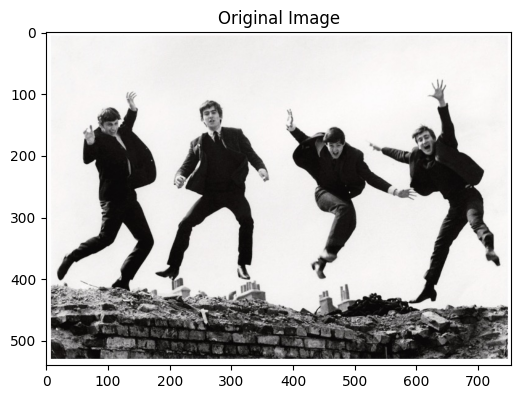
And run the inference:
results = model.predict(source, save=False)
result = results[0]
Display the result:
im_bgr = result.plot(boxes=False, conf=False, masks=True)
img = Image.fromarray(im_bgr[..., ::-1])
plt.figure(figsize=(6, 6))
plt.imshow(img)
plt.axis('off')  # This turns off the axis numbers
plt.title("YOLO Segmentation Result")
plt.show()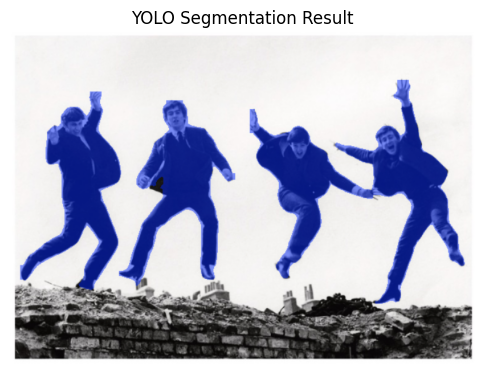
Pose Estimation
Download the model:
model_path= "./models/yolo11n-pose.pt"
task = "pose"

model = YOLO(model_path, task, verbose)
Running the Inference on the beatles image:
source = Image.open("./images/beatles.jpg")
results = model.predict(source, save=False)
result = results[0]
Showing the human pose keypoint detection and skeleton visualization.
im_bgr = result.plot(boxes=False, conf=False, kpt_line=True)
img = Image.fromarray(im_bgr[..., ::-1])
plt.figure(figsize=(6, 6))
plt.imshow(img)
plt.axis('off')  # This turns off the axis numbers
plt.title("YOLO Pose Estimation Result")
plt.show()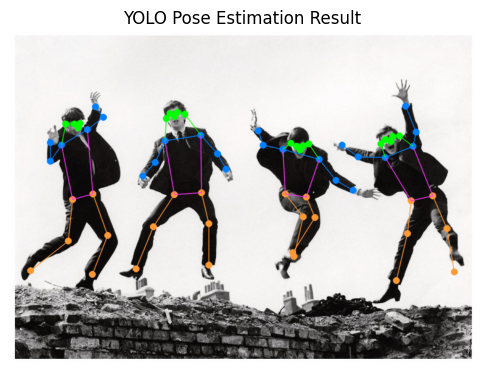
Training YOLO on a Customized Dataset
Object Detection Project
We will now develop a customized object detection project from the data collected and labeled with Roboflow. The training and deployment will be done in Python using a CoLab and Ultralytics functions.
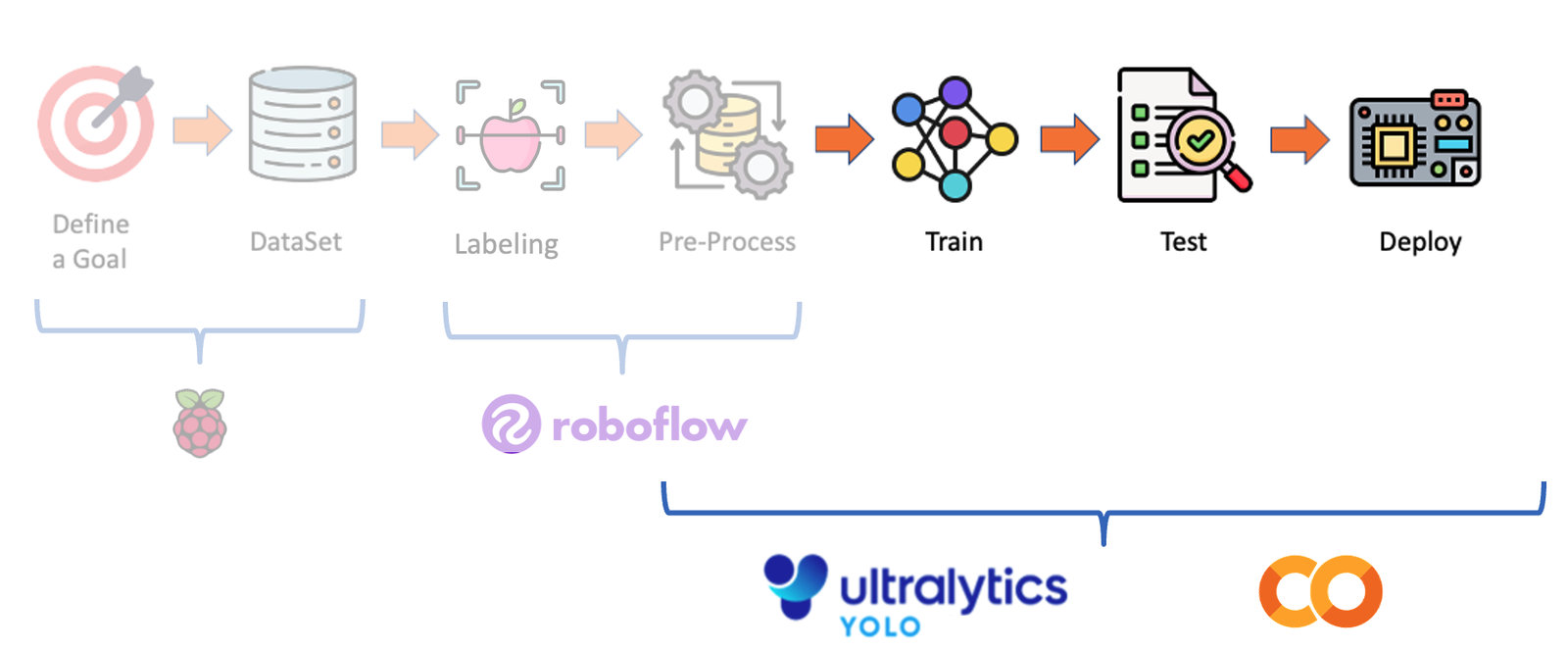
With YOLO, we will use the same dataset previously used to train the SSD-MobileNet V2 and FOMO models.
As a reminder, we are assuming we are in an industrial facility that must sort and count wheels and special boxes.
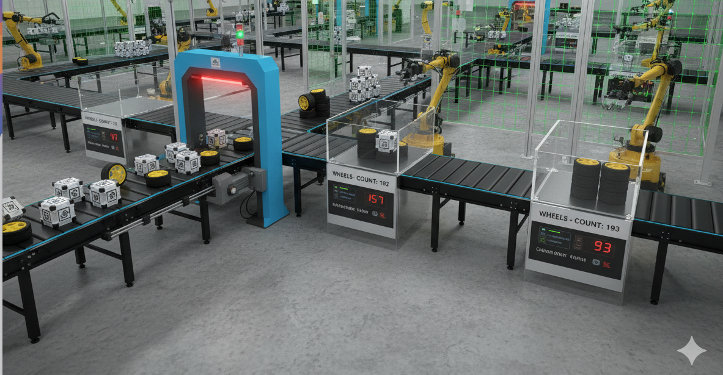
Each image can have three classes:
Background (no objects)
Box
Wheel
The Dataset
Return to our “Box versus Wheel” dataset, labeled on Roboflow. On the Download Dataset, instead of Download a zip to computer option done for training on Edge Impulse Studio, we will opt for Show download code. This option will open a pop-up window with a code snippet that should be pasted into our training notebook.
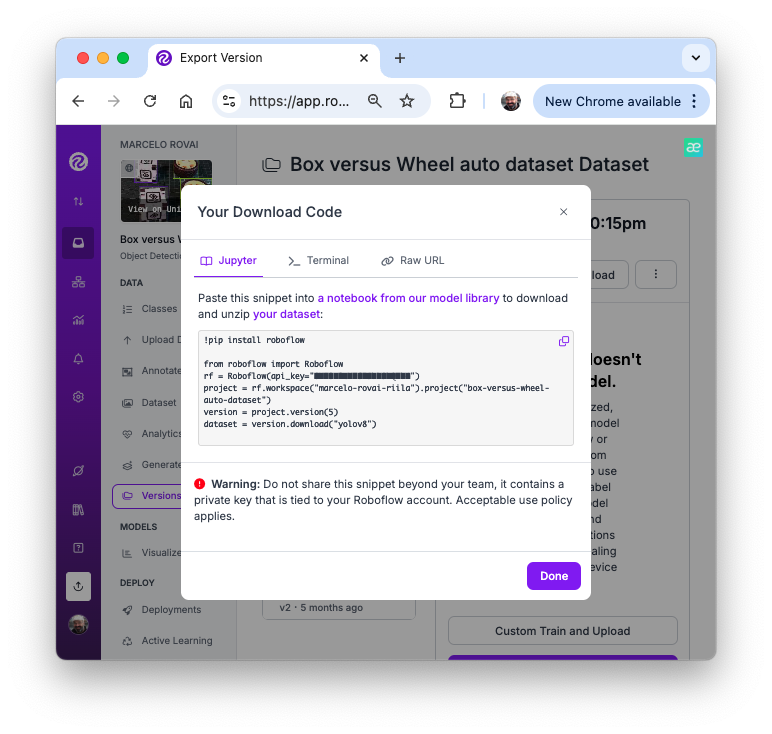
For training, let’s choose one model (let’s say YOLOv8) and adapt one of the publicly available examples from Ultralytics, then run it on Google Colab. Below, you can find my adaptation:
- YOLOv8 Box versus Wheel Dataset Training [Open In Colab]
Critical points on the Notebook
Run it with GPU (the NVIDIA T4 is free)
Install Ultralytics using PIP.
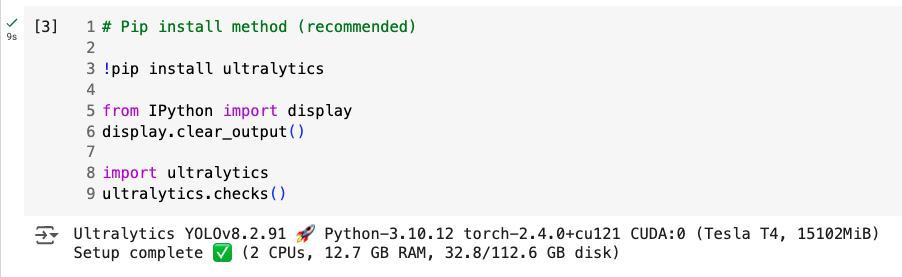
Now, you can import the YOLO and upload your dataset to the CoLab, pasting the Download code that we get from Roboflow. Note that our dataset will be mounted under
/content/datasets/:
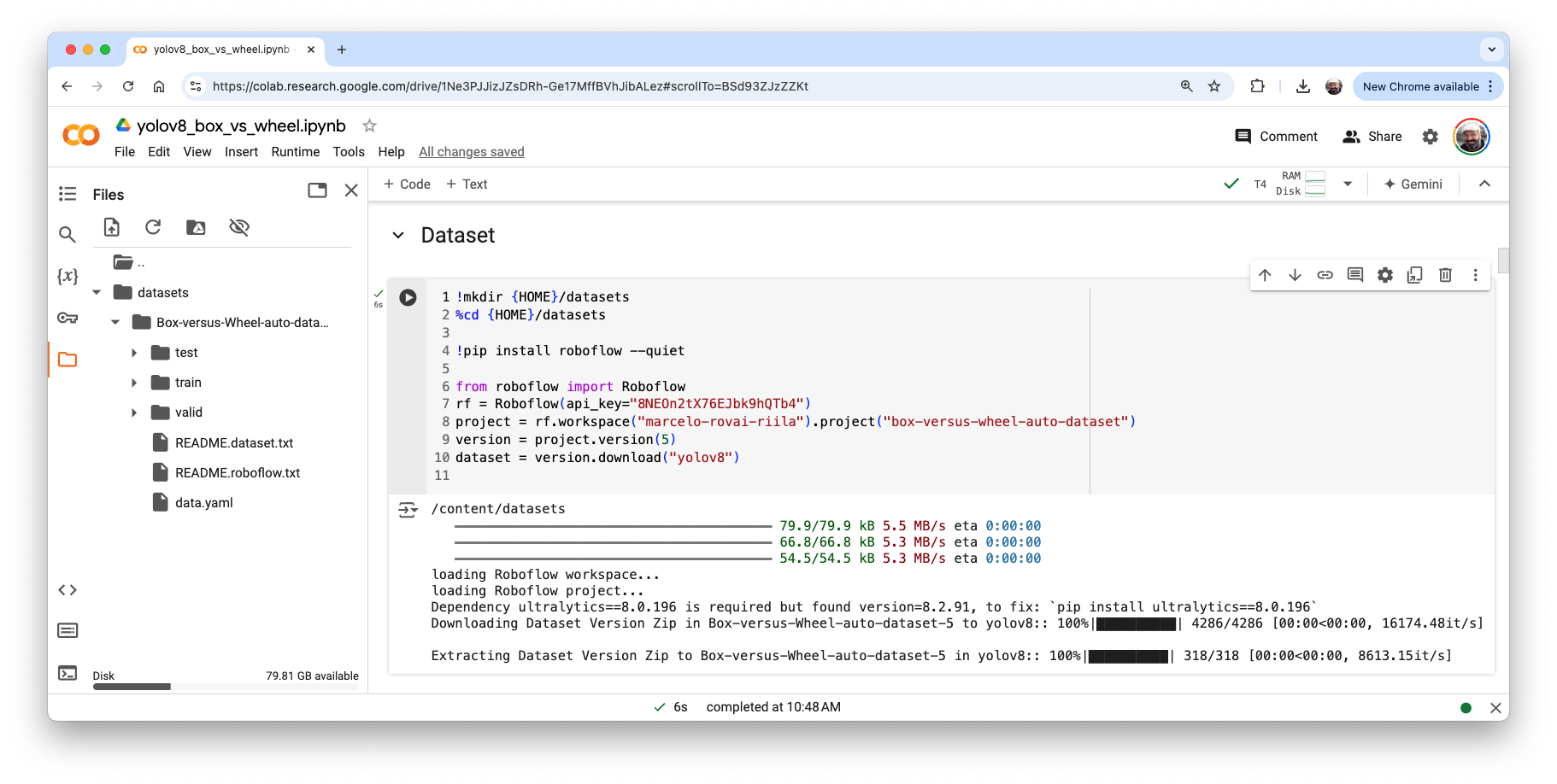
- It is essential to verify and change the file
data.yamlwith the correct path for the images (copy the path on eachimagesfolder).
names:
- box
- wheel
nc: 2
roboflow:
  license: CC BY 4.0
  project: box-versus-wheel-auto-dataset
  url: https://universe.roboflow.com/marcelo-rovai-riila/box-versus-wheel-auto-dataset/dataset/5
  version: 5
  workspace: marcelo-rovai-riila
test: /content/datasets/Box-versus-Wheel-auto-dataset-5/test/images
train: /content/datasets/Box-versus-Wheel-auto-dataset-5/train/images
val: /content/datasets/Box-versus-Wheel-auto-dataset-5/valid/images
Define the main hyperparameters that you want to change from default, for example:
MODEL = 'yolov8n.pt'
IMG_SIZE = 640
EPOCHS = 25 # For a final project, you should consider at least 100 epochs
Run the training (using CLI):
!yolo task=detect mode=train model={MODEL} data={dataset.location}/data.yaml epochs={EPOCHS} imgsz={IMG_SIZE} plots=True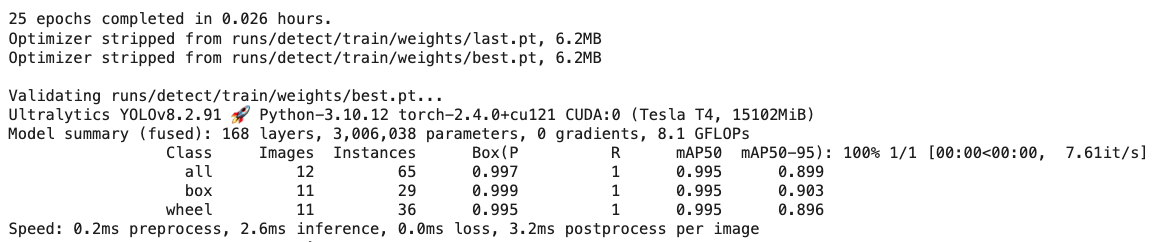
The model took a few minutes to be trained and has an excellent result (mAP50 of 0.995). At the end of the training, all results are saved in the folder listed, for example:
/runs/detect/train/. There, you can find, for example, the confusion matrix.
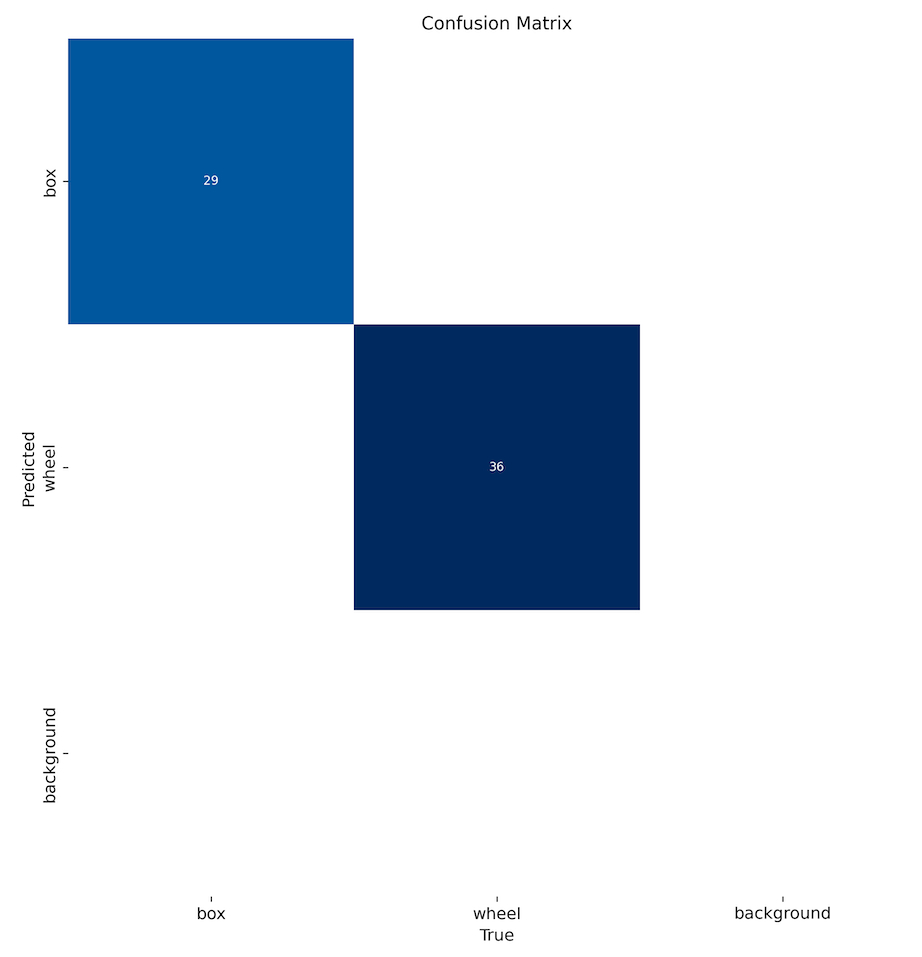
- Note that the trained model (
best.pt) is saved in the folder/runs/detect/train/weights/. Now, you should validate the trained model with thevalid/images.
!yolo task=detect mode=val model={HOME}/runs/detect/train/weights/best.pt data={dataset.location}/data.yamlThe results were similar to training. - Now, we should perform inference on the images left aside for testing
!yolo task=detect mode=predict model={HOME}/runs/detect/train/weights/best.pt conf=0.25 source={dataset.location}/test/images save=TrueThe inference results are saved in the folder runs/detect/predict. Let’s see some of them:
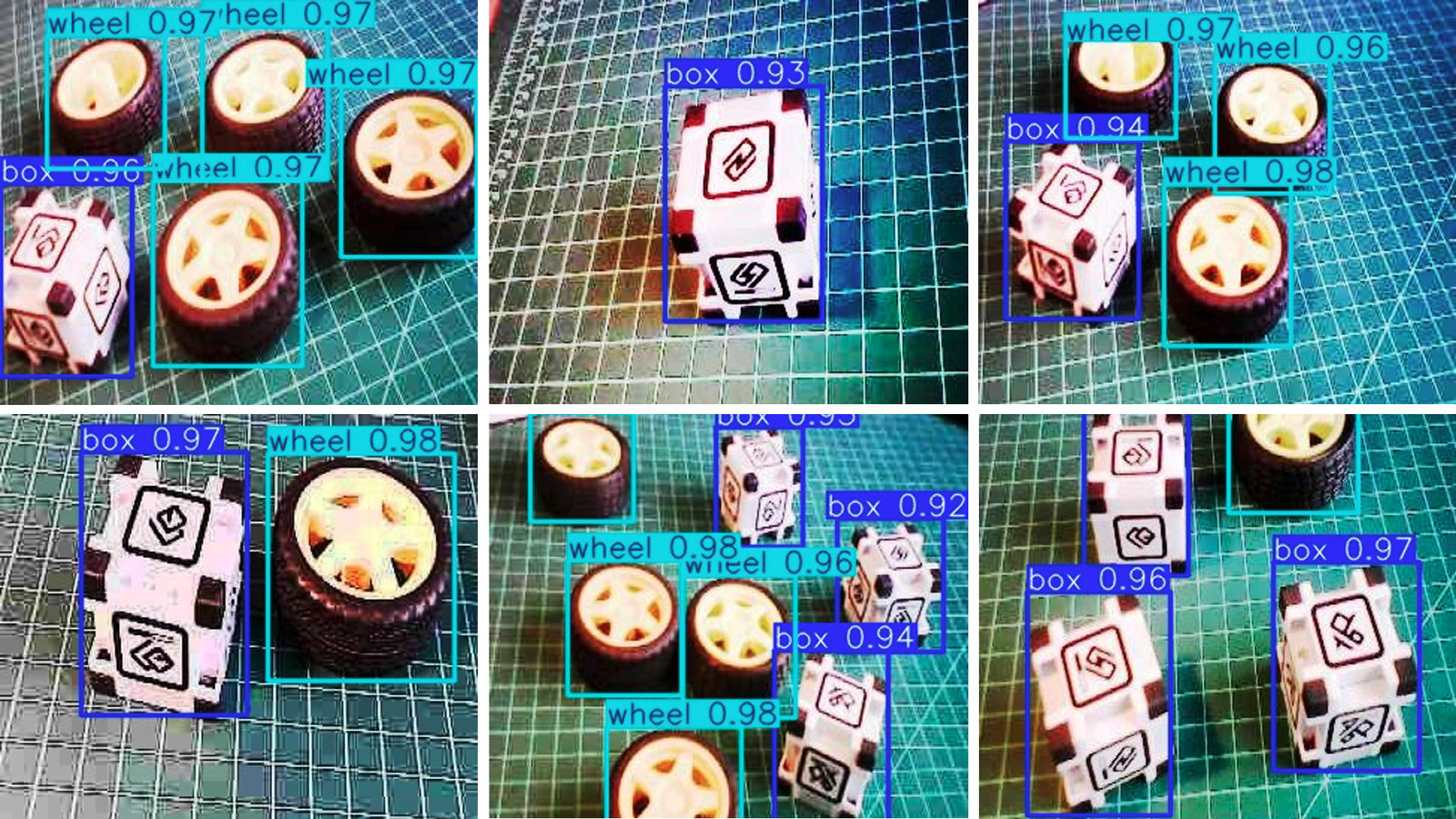
It is advisable to export the train, validation, and test results to Google Drive. To do so, we should mount the drive.
from google.colab import drive
drive.mount('/content/gdrive')
and copy the content of
/runsfolder to a folder that you should create in your Drive, for example:!scp -r /content/runs '/content/gdrive/MyDrive/10_UNIFEI/Box_vs_Wheel_Project'
Inference with the trained model, using the Raspi
Download the trained model /runs/detect/train/weights/best.pt to your computer. Using the FileZilla FTP, let’s transfer the best.pt to the Raspi models folder (before the transfer, you may change the model name, for example, box_wheel_320_yolo.pt).
Using the FileZilla FTP, let’s transfer a few images from the test dataset to ./YOLO/images:
Let’s return to the YOLO folder and use the Python Interpreter:
cd ..
python
We will import the YOLO library and define the model to use:
>>> from ultralytics import YOLO
>>> model = YOLO('./models/box_wheel_320_yolo.pt')
Now, let’s define an image and call the inference (we will save the image result this time for external verification):
>>> img = './images/1_box_1_wheel.jpg'
>>> result = model.predict(img, save=True, imgsz=320, conf=0.5, iou=0.3)
Let’s repeat for several images. The inference result is saved in the variable result, and the processed image on runs/detect/predict8
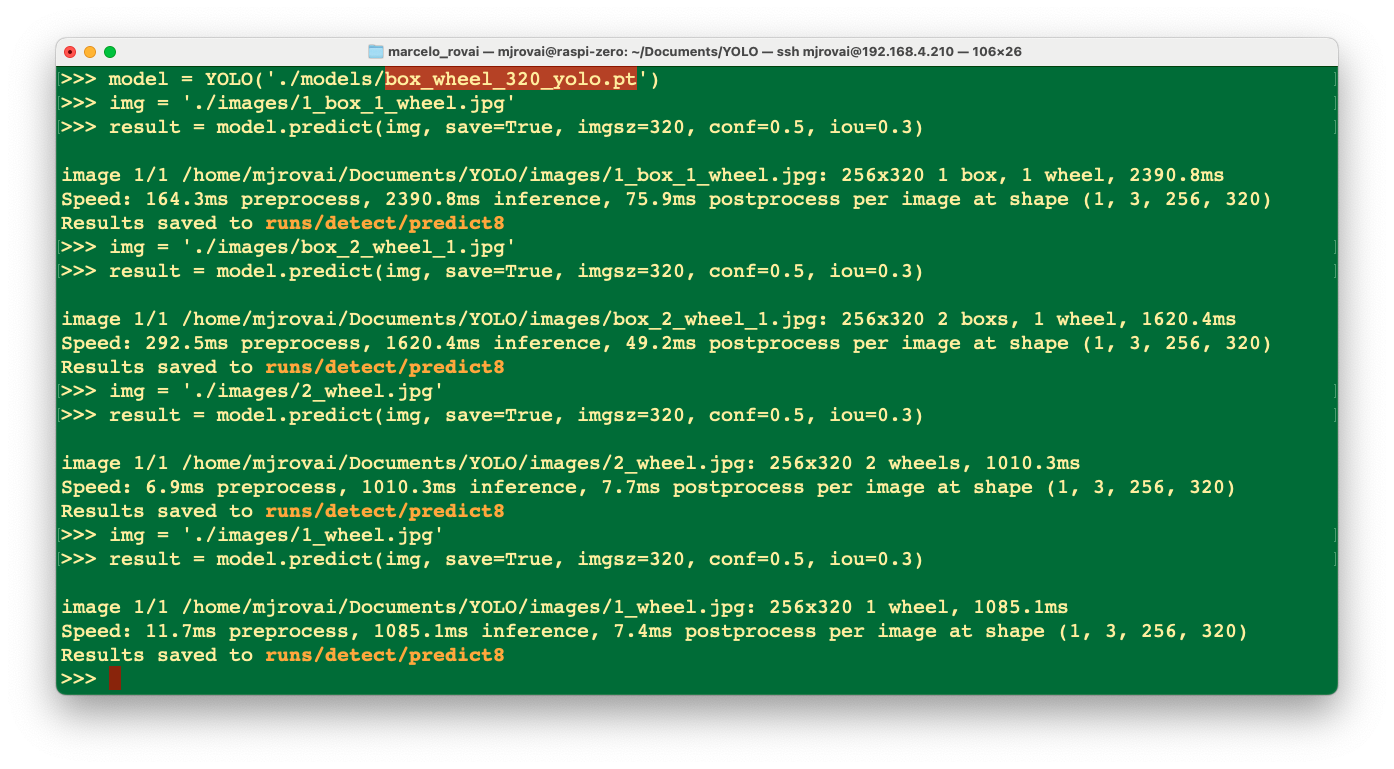
Using FileZilla FTP, we can send the inference result to our Desktop for verification:
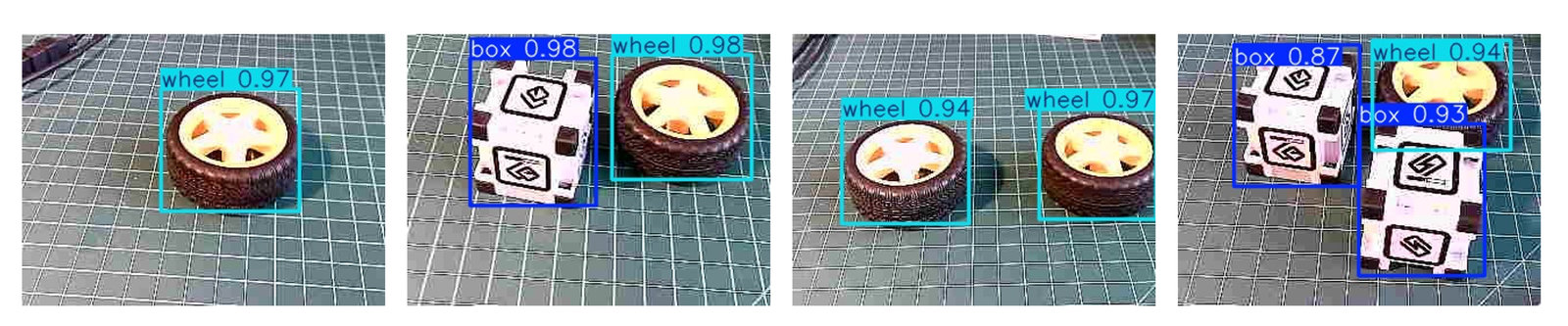
We can see that the inference result is excellent! The model was trained based on the smaller base model of the YOLOv8 family (YOLOv8n). The issue is the latency, around 1 second (or 1 FPS on the Raspi-Zero). We can reduce this latency by converting the model to TFLite or NCNN.
The model trained with YOLO11 has a latency of around 800 ms, similar to the result of v8 with ncnn.
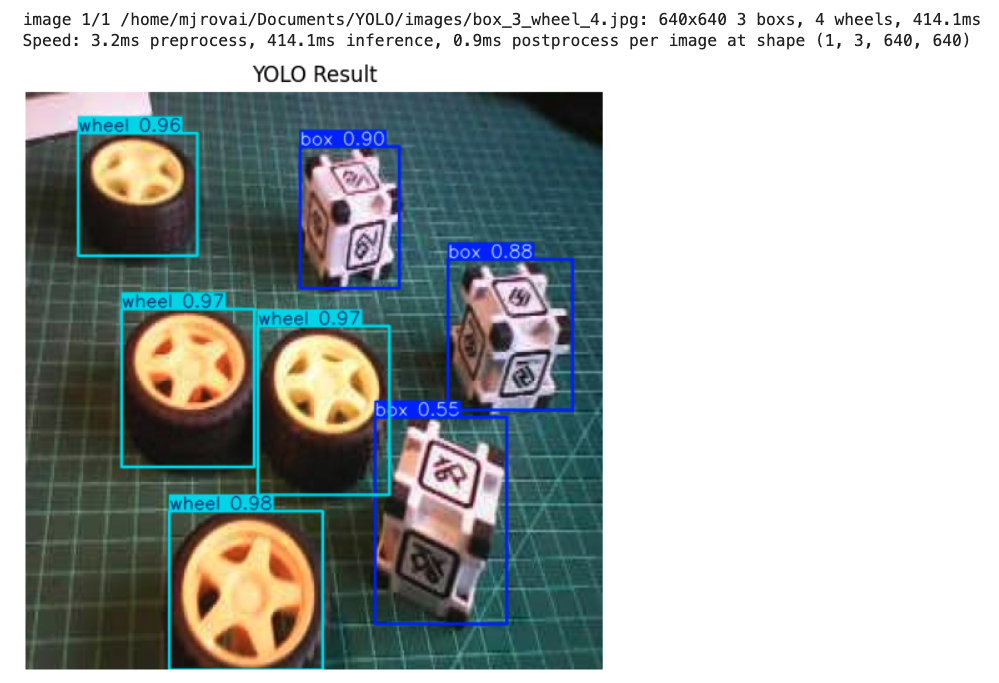
In the last section of the notebook, we can find inferences made with the trained YOLO11n model on a Raspberry Pi 5, which took around 400ms:
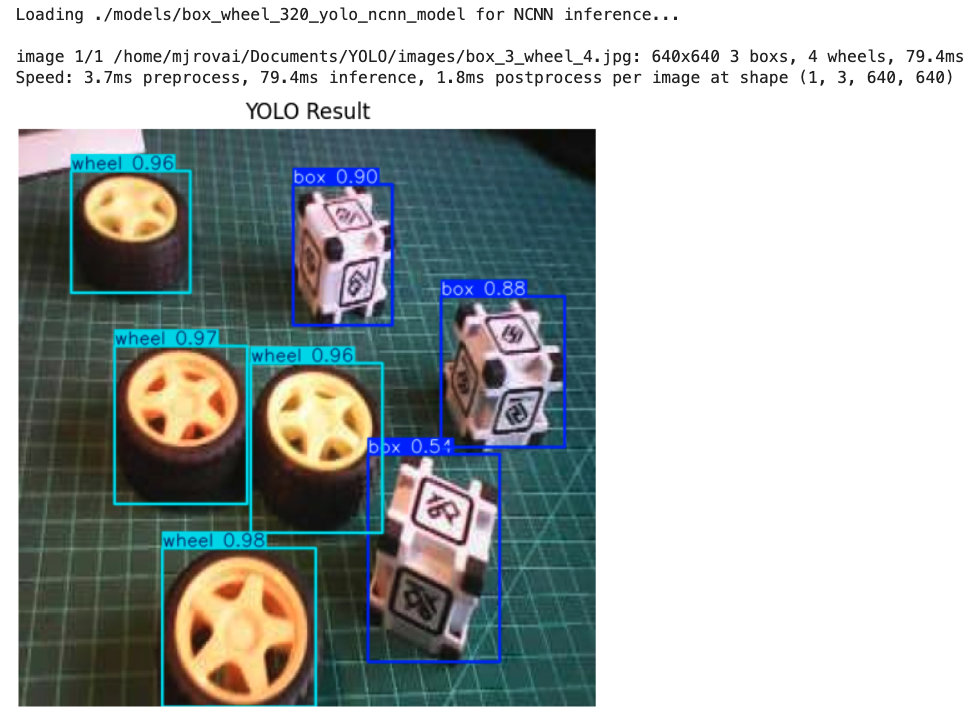
The same model, when exported to NCNN, took around 80 ms.
Exporting the Trained Model to NCNN
Converting the custom model to NCNN gives the same speedup we saw earlier with the COCO models. Two practical points before running it.
Run the export from a terminal, not from a notebook cell. pnnx, the tool that performs the conversion, pins all four cores for a minute or more and allocates its own memory pools outside PyTorch’s allocator. On the Raspberry Pi Zero 2 W, running it from inside a notebook — on top of a Jupyter server and a kernel already holding several loaded models — repeatedly caused the board to reset. From a plain SSH session the same export completes in about 90 seconds without trouble.
Export at the size the model was trained for. Our custom model was trained at 320×320, so:
cd ~/Documents/YOLO
yolo export model=./models/box_wheel_320_yolo.pt format=ncnn imgsz=320
Then run inference at the same size:
yolo predict task=detect model=./models/box_wheel_320_yolo_ncnn_model \
     source=./images/box_3_wheel_4.jpg imgsz=320
image 1/1 .../box_3_wheel_4.jpg: 320x320 3 boxs, 4 wheels, 519.3ms
Speed: 237.6ms preprocess, 519.3ms inference, 506.7ms postprocessAbout 519 ms, or roughly 2 FPS on the Zero 2 W, against approximately 2500 ms for the same model in its original PyTorch format.
The imgsz Rule: Training, Export, and Inference Must Match
This deserves emphasis, because getting it wrong produces no error message.
A .pt model accepts any imgsz and letterboxes the input accordingly, so we get used to treating the argument as something we can change freely at inference time. An exported model does not work this way. NCNN, ONNX, and TFLite all bake the input shape into the graph at conversion time. Passing a different imgsz at inference is either silently ignored or produces meaningless output.
Exporting our 320-trained model without specifying imgsz defaults the graph to 640. Running it then gives:
image 1/1 .../box_1.jpg: 320x320 113 boxs, 164 wheels, 2880.5msOne hundred and thirteen boxes and one hundred and sixty-four wheels in an image containing a single box, most at confidence 1.00 — the image is covered in overlapping rectangles. Nothing crashed and nothing warned us; the tensor simply did not match the graph the weights were compiled for.
The rule is straightforward: the imgsz used for training, for export, and for inference must all be the same value. After any export, check the first line of the prediction output and confirm the shape is what you expect before trusting any result.
Note that the export banner suggests
imgszmatching whatever the conversion used, not what the model was trained at. If we export without the argument, that suggestion will confidently tell us to use 640 for a 320 model.
Cold and Warm Inference
Two consecutive runs of the same command on the same model:
| Run | Preprocess | Inference | Postprocess |
|---|---|---|---|
| First (cold) | 289.7 ms | 2545.1 ms | 1540.9 ms |
| Second (warm) | 237.6 ms | 519.3 ms | 506.7 ms |
Nearly a factor of five, with no change to the model or the command. The first call pays for loading the library code and faulting pages in from the SD card; the second finds them already resident. On a memory-constrained board, this penalty is larger than the inference itself, so always discard the first measurement and report the steady-state figure. A service that runs inference continuously pays this cost only once at startup.
Conclusion
This chapter has explored the YOLO model and the implementation of a custom object detector on a Raspberry Pi, demonstrating the power and potential of running advanced computer vision tasks on resource-constrained hardware. We’ve covered several vital aspects:
- Model Comparison: We examined different object detection models, including SSD-MobileNet, FOMO, and YOLO, comparing their performance and trade-offs on edge devices.
- Training and Deployment: Using a custom dataset of boxes and wheels (labeled on Roboflow), we walked through the process of training models with Ultralytics and deploying them on a Raspberry Pi.
- Optimization Techniques: To improve inference speed on edge devices, we explored various optimization methods, such as format conversion (e.g., to NCNN).
- Performance Considerations: Throughout the lab, we discussed the balance between model accuracy and inference speed, a critical consideration for edge AI applications.
As discussed before, the ability to perform object detection on edge devices opens up numerous possibilities across various domains, including precision agriculture, industrial automation, quality control, smart home applications, and environmental monitoring. By processing data locally, these systems can offer reduced latency, improved privacy, and operation in environments with limited connectivity.
Looking ahead, potential areas for further exploration include:
- Implementing multi-model pipelines for more complex tasks
- Exploring hardware acceleration options for Raspberry Pi
- Integrating object detection with other sensors for more comprehensive edge AI systems
- Developing edge-to-cloud solutions that leverage both local processing and cloud resources
Object detection on edge devices can create intelligent, responsive systems that bring the power of AI directly into the physical world, opening up new frontiers in how we interact with and understand our environment.